Manage agent tokens
Issue tokens, choose scopes and expiry, and rotate or revoke them. A token's value is shown only once, when it's issued.
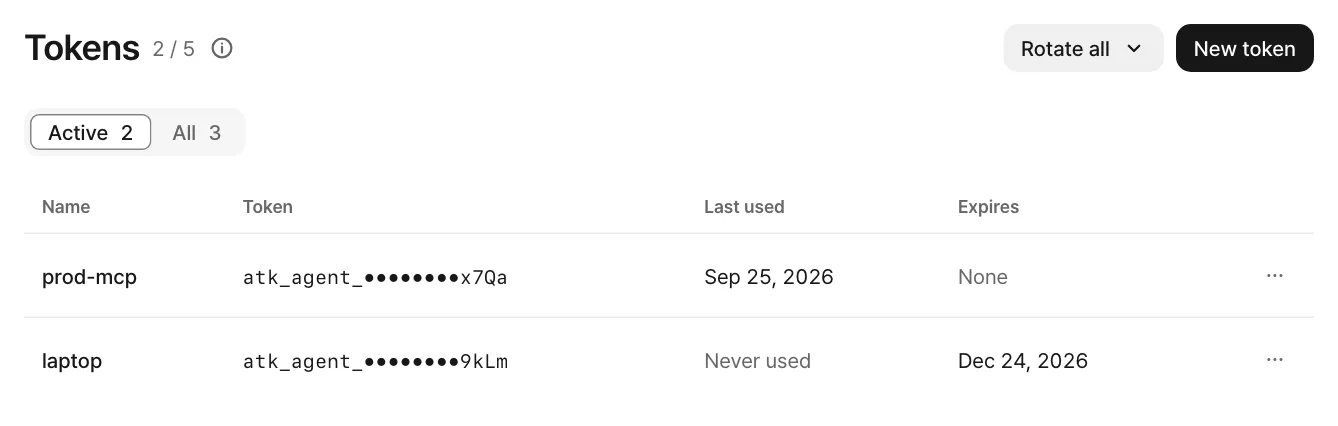
An agent token is the secret your agent uses for MCP and the REST API. It starts with atk_agent_. The value is shown only once, right after it's issued or rotated. The list shows only the last four characters, like atk_agent_••••••••abcd.
Warning · Token leaked?
Jump to the leak steps: rotate or revoke that token first.
Before you start
- You need the owner or admin role to create or change tokens.
Issue a new token
Give each place that uses a token its own named token, so you can revoke just the one that leaks.
Open New token
On the agent's Tokens screen, choose New token.
Pick a name, scopes, and expiry
The Name tells you where it's used (up to 60 characters). Pick at least one Scope. For Expires, choose Never, 30, 90, or 365 days.
Issue it and keep it
Choose Issue. The token window opens. Copy the token or send the setup message to your agent, tick the checkbox, and close the window. Once it's closed, you can't see the token again.


Your plan sets how many active tokens an agent can have (up to 5).
Scopes
| Scope | What it allows |
|---|---|
Send messages:send | New mail, replies, forwards, creating and cancelling schedules, deleting webhook endpoints, redelivering webhooks |
Read messages:read | Reading received mail, threads, and attachments; approval status; verification codes; listing and reading schedules; registering and listing webhook endpoints; webhook delivery records |
Audit audit:read | Reading send decision records |
Self agent:read_self | Reading its own policy (get_my_policy) |
For a read-only agent, leave out Send. MCP clients then won't see the send tools.
Rotate a token
Use this if you missed the value, or to change tokens on a schedule.
- In the token row's ⋯ menu, choose Rotate.
- A new token with the same name, scopes, and lifetime is issued, and the current one is revoked right away.
- Put the new token in the agent's configuration and reload MCP.
The arrow (▾) next to Rotate all at the top opens a menu. Rotate all revokes every live token and issues one new token. Revoke all revokes them all without issuing a new one.
Revoke a token
In the token row's ⋯ menu, choose Revoke. Anything using that token is cut off right away. Other tokens keep working.
Irreversible · Revoking can't be undone
A revoked token can't be restored.
If a token leaked
Keep this order: cut it off first, then reconnect.
Find the leaked token
On the agent's Tokens screen, find it by the last four characters in the Token column.
Rotate or revoke it
In that row's ⋯ menu, choose Rotate (or Revoke if you won't need it again). The old token stops working at that moment. Rotating opens a new-token window, and the new token is shown there only once. Copy it right away.
Reconnect with the new token
Put the new token where the old one was used and reconnect. See Hermes · Claude Code · Cursor · Other clients.
Look for misuse
Check the Last used column in the token list and the Logs › Outbound tab for sends you don't recognize.
Delete where you pasted it
If you pasted the token into a chat, document, issue, or messenger, delete that message.
An emergency stop doesn't revoke tokens. During the stop, a leaked token can still read received mail, and after you resume it can send again. That's why a leak calls for revoking or rotating, not stopping.
What tokens can't do
An agent token can't change the policy, pay for a plan, create agents, or read organization API keys. It only reaches its own agent's mail and information.
Feedback on this page? Write to support@atmark.ai.