Manage members and roles
What owners, admins, and members can each do, and how to change roles and remove members.
Roles
| Role | Can do |
|---|---|
| Owner | Everything, including members, invites, and organization API keys |
| Admin | Change agents, tokens, and policies; turn on emergency stops (only owners can lift a whole-organization stop); cancel schedules; billing |
| Member | View only. A Read-only notice appears at the top. |
The person who signed up is the Primary owner. Approval emails go to the primary owner's address, so that role can't be changed or removed. An organization must always have at least one owner.
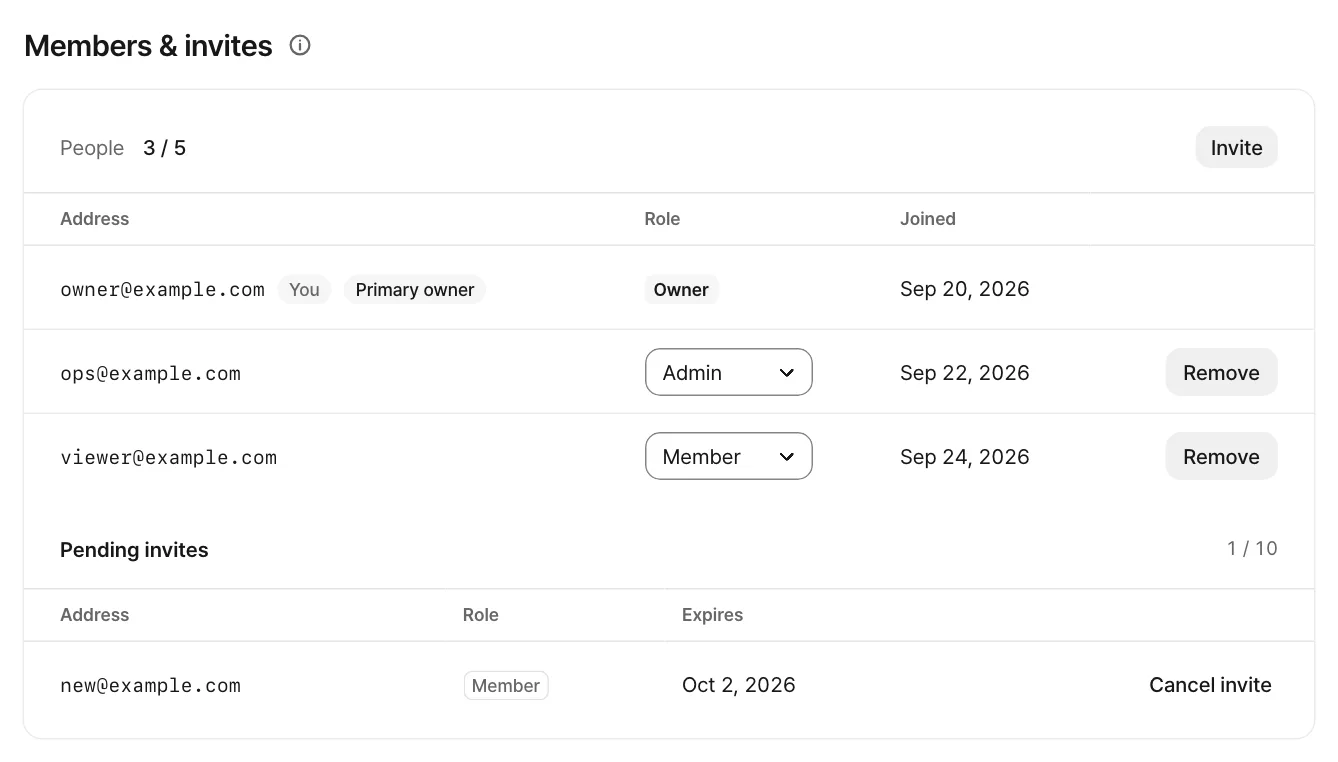
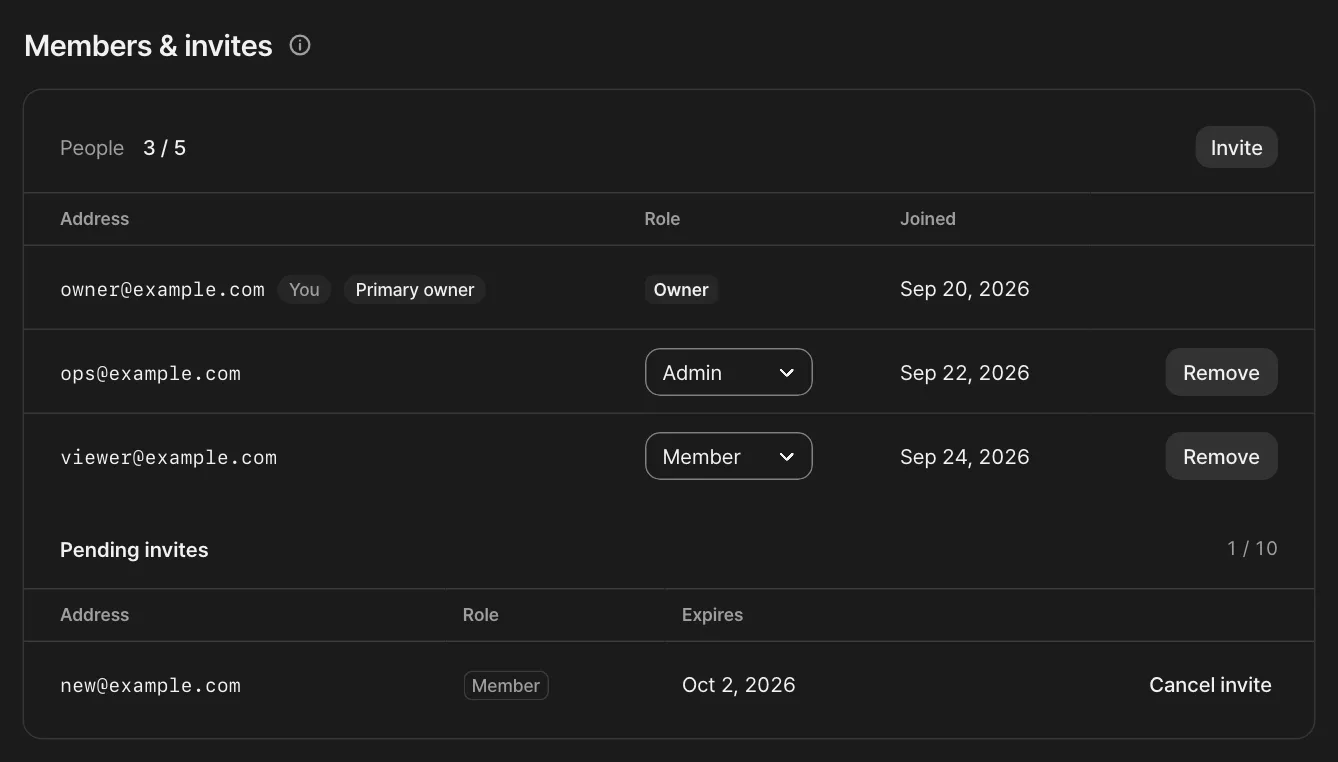
Change a role
Only owners can do this.
- Open Settings › Members & invites.
- In the member row's action menu, choose Change role, pick the new role, and confirm.
Remove a member
Only owners can do this. Choose Remove from the member row's action menu. That person's session for this organization ends right away; memberships in other organizations stay. To come back, they need a new invite.
Leave an organization
Choose Leave this organization at the bottom of Settings › Members & invites. You can no longer see this organization's console, and you'll need an owner's invite to come back.
Switch between organizations
One address can belong to several organizations. Choose the arrows next to the organization name at the top left to pick another one. New organization in the same menu creates another organization with you as owner. New organizations also need operator review before they can email outside addresses. You can own up to 5 organizations and create up to 2 a day.
Feedback on this page? Write to support@atmark.ai.